Most people use their Meta Quest headset for games, apps, and VR experiences. With the right app, your headset can also become a stereoscopic 3D camera.
Spatial Camera is an app for Meta Quest 3 and Meta Quest 3S that lets you capture stereoscopic 3D photos and videos directly from your VR headset. Instead of recording a flat 2D video, Spatial Camera records stereo 3D video with separate views for the left and right eye.
This lets you capture memories, places, events, travel moments, family videos, and everyday experiences with depth, so they feel more immersive when you watch them later in VR.
What Is Stereoscopic 3D Video?
Stereoscopic 3D video uses two slightly different views: one for the left eye and one for the right eye. This is similar to how human vision works.
When viewed in a VR headset or compatible 3D player, the video creates a natural feeling of depth. Objects can appear closer or farther away, making the video feel more realistic than a normal flat recording.
Spatial Camera records videos in Side-by-Side 3D format, also known as SBS 3D video. This is one of the common formats for watching stereoscopic 3D videos on VR headsets, 3D TVs, and compatible 3D video players.
Why Use a Meta Quest Headset for 3D Capture?
Meta Quest 3 and Meta Quest 3S already have front-facing cameras. Spatial Camera uses those cameras to capture stereo 3D photos and videos directly from the headset.
This means you do not need a separate 3D camera, expensive hardware, or a complicated recording setup. You can wear your headset, open the app, and start recording.
Spatial Camera is useful for:
- Capturing family moments in 3D
- Recording travel memories
- Creating immersive video content
- Saving real-world experiences with depth
- Sharing 3D videos on YouTube, DeoVR, or Google Drive
- Watching your own stereoscopic videos inside VR
- Creating SBS 3D videos using your Meta Quest headset
How to Capture Stereoscopic 3D Video on Meta Quest
To record 3D video with your Quest headset, use the Spatial Camera app.
-
Install Spatial Camera
Install Spatial Camera on your Meta Quest 3 or Meta Quest 3S headset. The app is designed specifically for capturing stereoscopic 3D photos and videos using the headset cameras.
-
Open the App
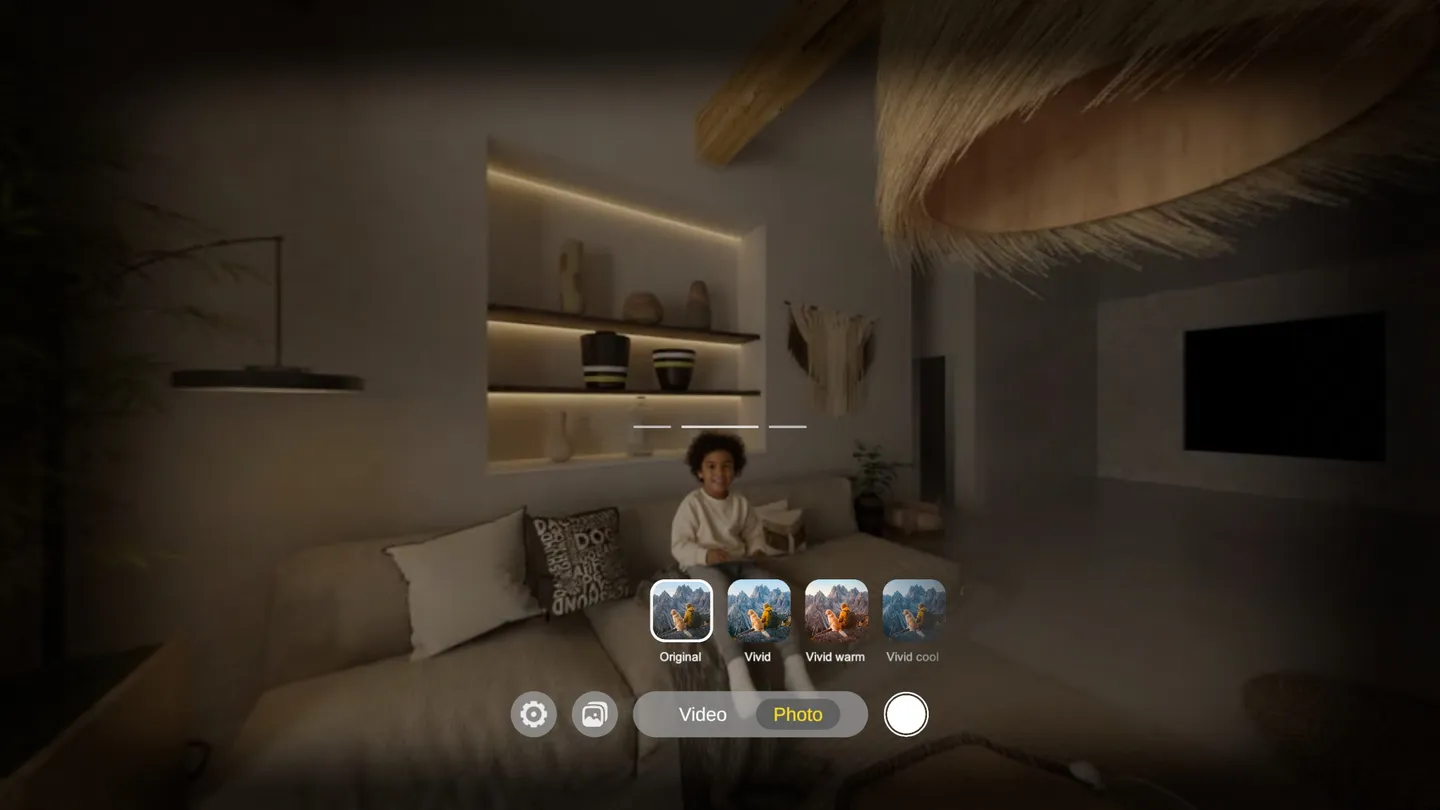
After installing the app, open Spatial Camera from your Quest library. You will see an interface for capturing 3D photos and videos directly from your headset.
-
Choose Your Recording Settings
Spatial Camera includes settings for video quality and export options. You can choose options such as codec, bitrate, frame rate, and video settings depending on how you want to use the final video.
For smoother motion, Spatial Camera supports 60 FPS recording. This is useful when recording movement, walking shots, events, travel videos, or any scene where you want the final stereoscopic 3D video to feel more natural and fluid inside VR.
The app also supports modern video formats such as HEVC/H.265, which helps keep good quality while reducing file size.
-
Record Your 3D Video
Press record and capture your scene. For best results, keep your subject at a comfortable distance from the headset. Stereoscopic 3D works best when objects are not too close to the cameras.
Spatial Camera also includes capture tools such as depth guidance and level indicators to help you record better 3D videos.
-
Watch Your Video in VR
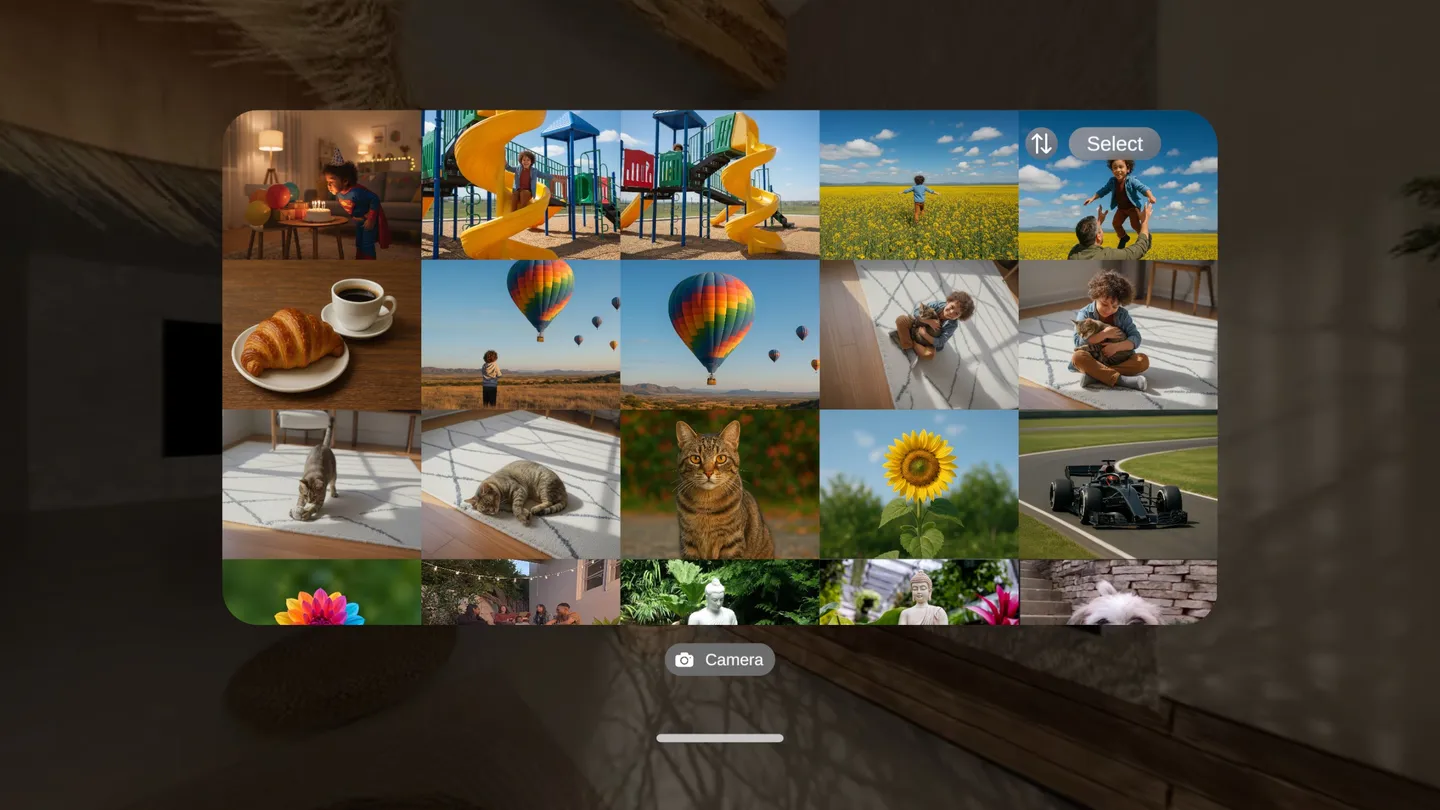
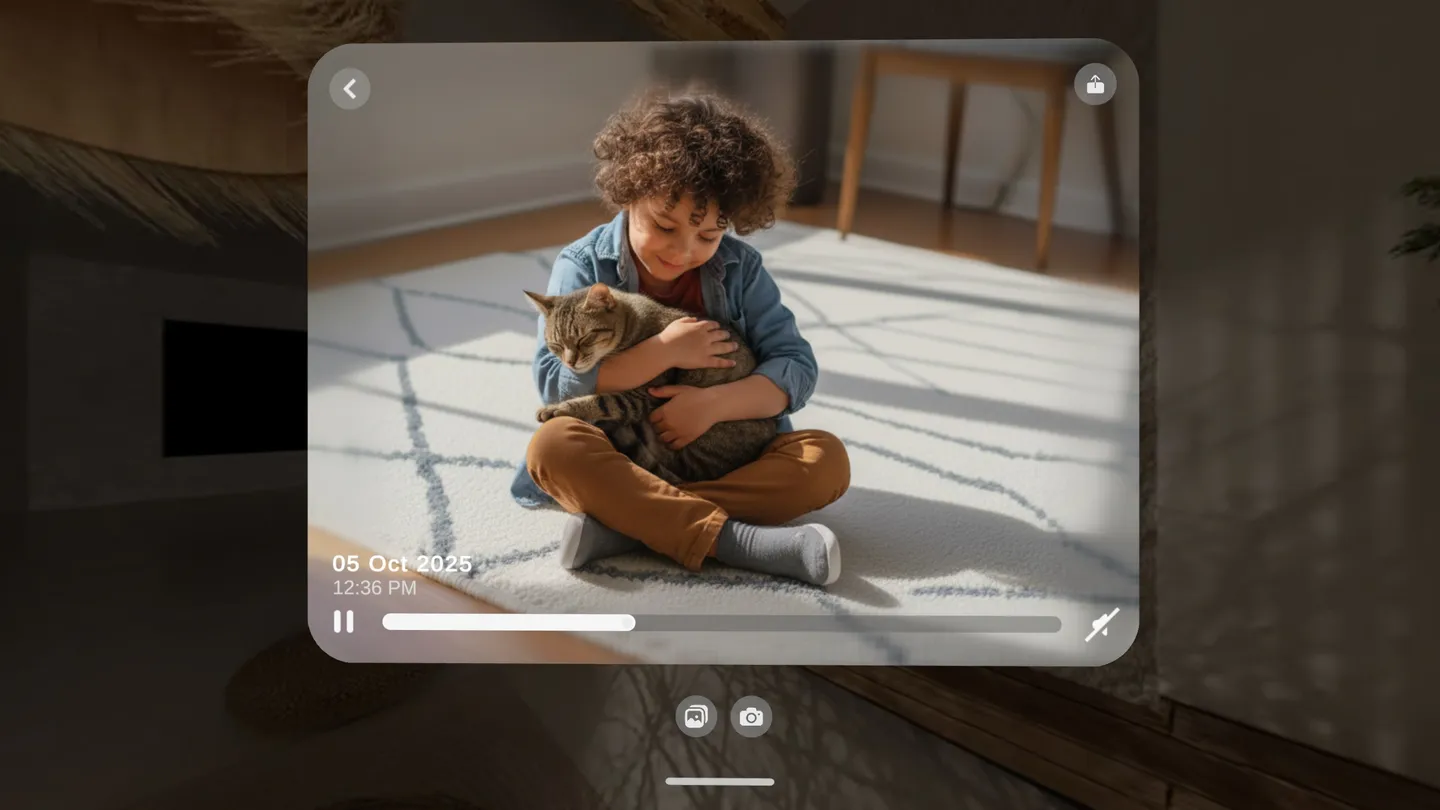
After recording, you can watch your 3D video directly inside the Spatial Camera in-app gallery. You can also save videos to the Meta Quest system gallery if that option is enabled.
When viewed inside a VR headset, the video appears with real stereo depth, giving a more immersive feeling than a normal 2D recording.
Sharing Your 3D Videos: YouTube, DeoVR, and Google Drive
After capturing a stereoscopic 3D video with Spatial Camera, you may want to share it online, upload it to a VR video platform, or send it privately. Spatial Camera gives creators flexible ways to use and share their 3D videos.
Spatial Camera includes export options for YouTube-compatible 3D video, making it easier to publish stereoscopic content.
Upload to YouTubeDeoVR is focused on VR video and 3D video, making it useful for creators who want VR users to watch their stereoscopic clips.
Open DeoVRGoogle Drive is useful for private sharing, backups, large file transfer, and keeping original 3D recordings for later editing.
Upload to Google DriveIs Spatial Camera the Same as 360 Video?
No. Spatial Camera records stereoscopic 3D video, not 360-degree video.
A 360 video lets you look around in every direction. Spatial Camera captures a forward-facing stereo 3D view using the Quest headset cameras. The result is not a full 360 video, but it does have real depth when watched in VR.
Spatial Camera is best for capturing what is in front of you in 3D.
Tips for Better Stereoscopic 3D Recording
- Keep subjects at a comfortable distance.
- Avoid placing objects too close to the headset cameras.
- Move slowly while recording.
- Keep the headset stable.
- Use good lighting when possible.
- Use 60 FPS when recording motion or movement.
- Review your videos in the in-app gallery.
- Export in the right format depending on where you want to watch or share the video.
Good lighting, smooth movement, and the right frame rate can make a big difference in the final 3D video quality.
Who Is Spatial Camera For?
Spatial Camera is for anyone who wants to capture real-world moments in 3D using a Meta Quest headset.
- VR users
- Content creators
- YouTubers
- Families
- Travelers
- 3D video enthusiasts
- People who want to preserve memories in a more immersive format
Instead of only watching immersive content, Spatial Camera lets you create your own.
Frequently Asked Questions
Can Meta Quest record 3D video?
With Spatial Camera, Meta Quest 3 and Meta Quest 3S can be used to capture stereoscopic 3D photos and videos using the headset cameras.
Does Spatial Camera support 60 FPS video?
Yes. Spatial Camera supports 60 FPS recording, which helps make stereoscopic 3D videos look smoother, especially when recording motion or watching the video later inside a VR headset.
Does Spatial Camera record 360 video?
No. Spatial Camera records forward-facing stereoscopic 3D video. It does not record full 360-degree video.
What format does Spatial Camera use?
Spatial Camera records stereoscopic video in Side-by-Side 3D format, also known as SBS 3D video.
Can I watch Spatial Camera videos inside VR?
Yes. You can watch your captured 3D videos directly inside the Spatial Camera in-app gallery. You can also save videos to the Meta Quest system gallery if that option is enabled.
Can I upload Spatial Camera videos to YouTube?
Yes. Spatial Camera includes YouTube-compatible export options, making it easier to upload stereoscopic 3D videos to YouTube.
Can I upload Spatial Camera videos to DeoVR?
Yes. After exporting your stereoscopic 3D video, you can upload the video file to DeoVR and share it with VR users.
Can I share Spatial Camera videos privately?
Yes. You can upload your videos to Google Drive and share them privately using a link.
Final Thoughts
Spatial Camera turns your Meta Quest 3 or Meta Quest 3S into a stereoscopic 3D video camera. With the app, you can record 3D photos and videos, capture smoother 60 FPS 3D videos, watch them in VR, export them, and share them on platforms like YouTube, DeoVR, or Google Drive.
If you have a Meta Quest 3 or Meta Quest 3S and want to try recording real 3D videos, Spatial Camera is one of the easiest ways to get started.

Install Spatial Camera
Download Spatial Camera for Meta Quest and start capturing stereoscopic 3D photos and videos.